Apply this guide to your own numbers using the Scientific Calculator Mode.
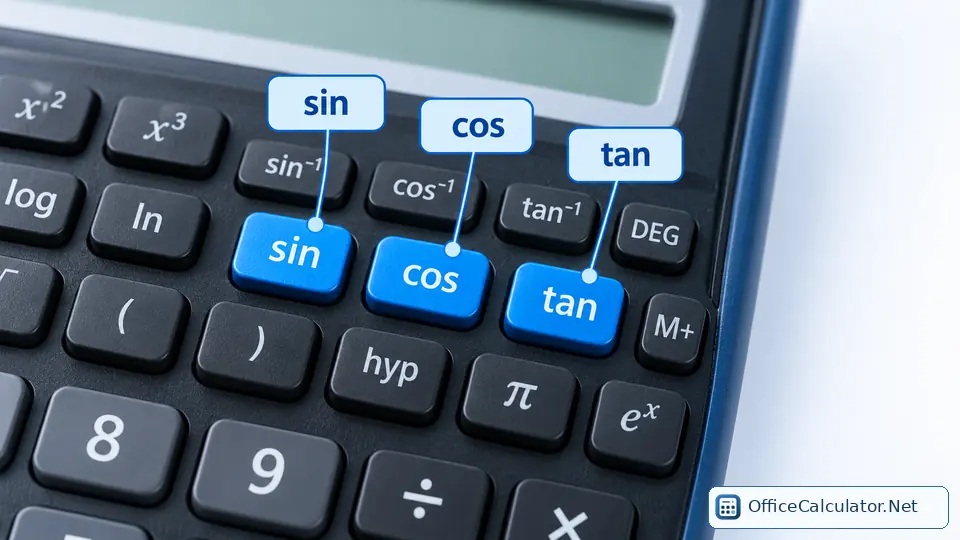
Scientific calculator key names, signs and purposes
Use this table as a brand-neutral map of the keys you are most likely to see on a school or college scientific calculator. A Casio, Texas Instruments or other model may place the same function on a different key, or make it a secondary function accessed with SHIFT or 2nd.
| Sign on key | Name | Purpose | Quick example |
|---|---|---|---|
| + − × ÷ | Arithmetic operators | Add, subtract, multiply and divide. | 18 ÷ 3 = 6 |
| ( ) | Parentheses / brackets | Group part of an expression so it is evaluated together. | 4 × (2 + 3) = 20 |
| ± or (−) | Negation / sign change | Enter or change a number to negative. | (−) 8 + 12 = 4 |
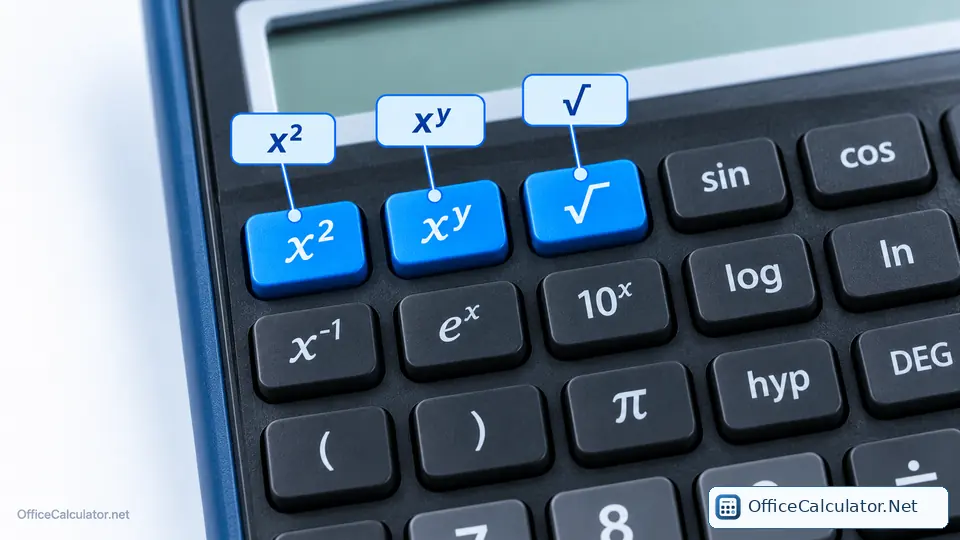
| x² | Square | Raise a number to the second power. | 12² = 144 |
| √ or √x | Square root | Find the number that squares to the input. | √144 = 12 |
| xʸ / ^ / yˣ | Power | Raise a base to any exponent. | 2^10 = 1024 |
| 1/x or x⁻¹ | Reciprocal | Calculate 1 divided by the current value. | 1/8 = 0.125 |
| sin cos tan | Trigonometric functions | Relate angles and side ratios. | sin(30°) = 0.5 |
| sin⁻¹ cos⁻¹ tan⁻¹ | Inverse trig | Find an angle from a trigonometric ratio. | sin⁻¹(0.5) = 30° |
| log | Common logarithm | Logarithm base 10 on standard scientific calculators. | log(1000) = 3 |
| ln | Natural logarithm | Logarithm base e. | ln(e) = 1 |
| EXP / EE / ×10ˣ | Scientific-notation exponent | Enter a multiplier by a power of ten; it is not the ordinary power key. | 6 EXP 4 = 6×10⁴ = 60,000 |
| π | Pi | Insert the constant π. | 2π ≈ 6.28318 |
| e | Euler's number | Insert the base of natural logarithms. | ln(e) = 1 |
| n! / x! | Factorial | Multiply positive integers from n down to 1. | 5! = 120 |
| a b/c / n/d | Fraction entry | Enter a fraction template or numerator/denominator. | 1/3 + 1/6 = 1/2 |
| S⇔D / F⇔D | Fraction/decimal conversion | Switch a result between exact fraction and decimal where supported. | 1/8 ↔ 0.125 |
| Ans | Last answer | Reuse the most recent result. | 3×3=9, then Ans×3=27 |
| SHIFT / 2nd | Secondary function | Access the alternate function printed above or beside a key. | 2nd + x² may access √ on some models |
| ALPHA | Letter / variable input | Access variables or letters printed in a secondary color on supported models. | Store and reuse variable A |
| MODE / SETUP | Calculation/settings mode | Select degree/radian, statistics, scientific notation or other calculator modes. | Choose DEG before sin(30°) |
| STO / RCL | Store / recall | Save a value to a variable and recall it later. | Store 9 in A; later recall A |
| MC MR M+ M− | Memory keys | Clear, recall, add to or subtract from independent memory. | 20 M+, 5 M+, MR → 25 |
The easiest way to learn scientific calculator buttons
Do not try to memorize the entire keypad at once. Learn it in families. Start with arithmetic and parentheses; then powers and roots; then fractions and scientific notation; then trigonometry; then logarithms; finally learn memory, variables and mode controls. This order matches the way many students meet these ideas in algebra, geometry and science.
Worked examples using common scientific keys
Example 1: Parentheses and powers
Evaluate (7 + 5)² ÷ 3. Enter the grouped sum first: ( 7 + 5 ) = 12, square it to get 144, then divide by 3. The final answer is 48.
Example 2: Trigonometry
With the calculator in degree mode, sin(30) should return 0.5. If you get a very different value, check whether the calculator is in RAD mode.
Example 3: Logarithm
log 1000 gives 3 because 10³ = 1000. ln e gives 1 because e¹ = e.
Example 4: Scientific notation
To enter 6 × 10⁴, use 6 followed by EXP or EE and then 4 on calculators that use that notation. Do not confuse EXP with the general power key: 6^4 = 1296, while 6 EXP 4 means 60,000.
What do SHIFT, 2nd, ALPHA and MODE mean?
SHIFT or 2nd temporarily changes the next key to its secondary function. ALPHA accesses letters or variables on calculators that support them. MODE or SETUP changes calculator behavior such as the angle unit, statistics mode or number display. On many models, an indicator appears on the display while a shifted or alpha state is active.
Because manufacturers arrange these functions differently, use the label printed on your own calculator as the final authority. Official Casio and TI manuals both document secondary-function keys, angle modes, memory and notation settings, but their physical layouts differ.
Common scientific calculator mistakes
- Wrong angle unit: DEG and RAD produce different trig results.
- Using EXP as a power key: EXP usually means “×10 to the power of,” not “raise the previous number to any power.”
- Missing parentheses: 1 ÷ (2 + 3) is not the same as 1 ÷ 2 + 3.
- Confusing − with the negative-sign key: some physical calculators use separate subtraction and negation keys.
- Forgetting an old memory value: clear memory before a new running total if your calculator retains it.
- Copying keystrokes from a different model: the mathematical function may be the same even when the button sequence differs.
How should a student practice scientific calculator keys?
- Estimate the answer before using the calculator.
- Choose the correct mode, especially DEG or RAD for trigonometry.
- Enter one short expression and compare the display with what you intended.
- Repeat the same concept with three different values.
- Explain the result in words, not just as a number.
- Mix several key families only after each family feels familiar.
Use our scientific calculator practice exercises for a structured sequence and the printable key cheat sheet as a reference beside your keyboard.
Official references and model differences
For model-specific keystrokes, use the manual for your calculator. Useful official references include the Casio calculator support and how-to guides and Texas Instruments scientific calculator guidebooks. Casio also documents that EXP is intended for scientific-notation entry rather than ordinary exponentiation.
Frequently asked questions
What are the most important scientific calculator keys to learn first?
Learn parentheses, x², square root, the general power key, sin/cos/tan, log, ln, the angle-mode control, Ans and the secondary-function key first. These cover a large share of school-level calculations.
Are scientific calculator keys the same on every model?
No. The mathematics is similar, but key names, colors, menus and secondary-function locations vary by model and manufacturer.
What is the difference between EXP and the power key?
EXP or EE normally enters scientific notation as a multiplier by a power of ten. A key such as x^y, y^x or ^ raises one number to another power.
Why does sin(30) sometimes not equal 0.5?
The calculator may be in radian mode. sin(30 degrees) equals 0.5, but sin(30 radians) is a different calculation.
Open the main calculator, choose Scientific, and try the examples with your own values.
Try the steps with your own inputs in the Scientific Calculator Mode.