Apply this guide to your own numbers using the Scientific Calculator Mode.
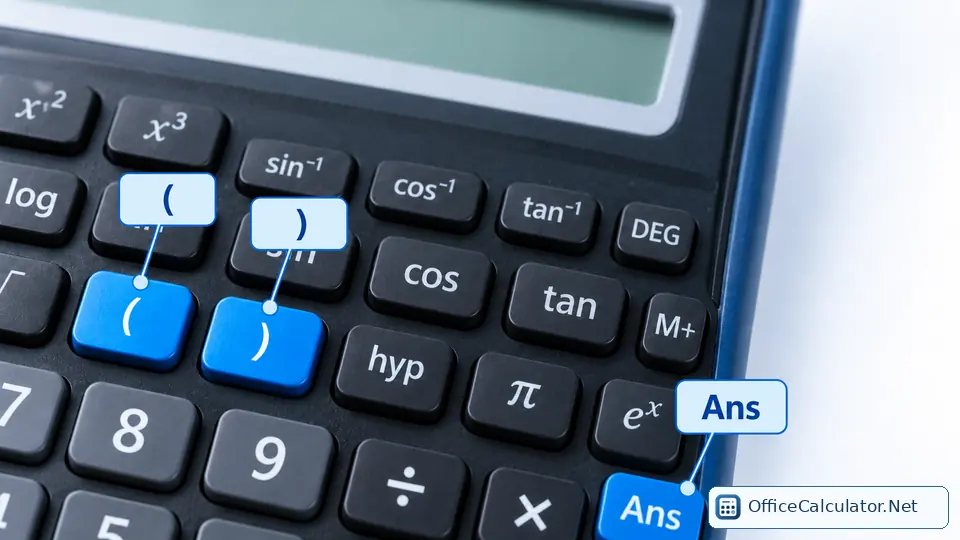
Control-key names and meanings
| Key | Meaning | Purpose | Typical use |
|---|---|---|---|
| SHIFT / 2nd | Secondary function | Activates the alternate label for the next key | Access √, sin⁻¹, 10ˣ or another second function |
| ALPHA | Alphabet/variable input | Accesses letters or variables on supported models | Use variable A in an expression |
| MODE / SETUP | Mode/settings | Changes calculation or display settings | DEG, RAD, STAT, SCI, ENG |
| Ans | Last answer | Recalls the most recent result | 3×3=9, then Ans×4=36 |
| STO | Store | Saves a value to a variable | Store 12 in A |
| RCL | Recall | Retrieves a stored variable | Recall A later |
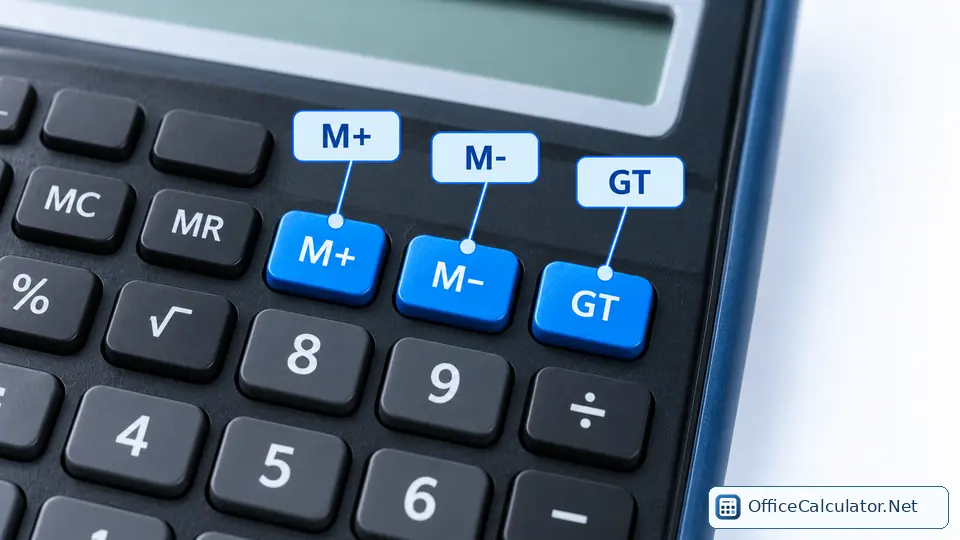
| M+ / M− | Memory plus/minus | Adds to or subtracts from independent memory | Running subtotal |
| MR / MC | Memory recall/clear | Shows or clears the independent memory value | Finish or reset a memory total |
| AC / CE / DEL | Clear controls | Clear all/current entry or delete a character depending on model | Correct input without restarting |
SHIFT or 2nd: how secondary functions work
Many physical scientific calculators print a second function above a key in another color. Press SHIFT or 2nd, then press that key. On some models the display shows a shift indicator until the next key is pressed.
For example, a calculator may place sin⁻¹ above the sin key. The mathematical idea is the same even if the sequence is SHIFT + sin on one model and 2nd + sin on another.
What does ALPHA do?
ALPHA is commonly used for letters or variables printed in a separate color. It is useful in models that let students store values in A, B, C, X, Y or other named variables. Casio’s getting-started documentation, for example, distinguishes a shifted keypad indicator from an alpha-input indicator and documents STO/RCL status indicators.
MODE and SETUP: the key that changes other answers
MODE/SETUP can change calculation mode, angle units and display settings. Casio documents modes such as basic calculation, statistics and base-n, plus angle settings for degrees, radians and grads. TI models also provide normal, scientific and engineering notation settings on supported calculators.
How to use the Ans key
Ans stores the most recent result so you can continue without retyping it. Example: calculate 12 × 5 = 60. Then enter Ans ÷ 4 to get 15. This is especially useful in multi-stage science calculations where the first result becomes an input to the next step.
STO and RCL versus ordinary memory
STO/RCL usually work with named variables, while M+, M−, MR and MC work with an independent memory register. A model with several named variables can keep more than one reference value at a time.
For a complete running-total example, see our calculator memory buttons guide.
If a scientific calculator key seems not to work
- Check whether SHIFT, 2nd or ALPHA is still active.
- Confirm the calculation mode and angle unit.
- Close any missing parentheses.
- Make sure the current function accepts the value; for example, √ of a negative number is not a real-number result in ordinary real mode.
- Clear the current entry and try a known simple example.
- If the problem persists, use the model's official reset procedure or manual rather than guessing, because reset sequences vary.
How students should practice control keys
Practice one control concept at a time: first use Ans in three chained calculations, then store and recall one variable, then switch DEG/RAD and observe the trig result, then use a secondary function such as inverse sine. This is more effective than memorizing button colors without using them.
Frequently asked questions
What is the difference between SHIFT and ALPHA?
SHIFT or 2nd usually accesses a secondary mathematical function, while ALPHA usually accesses letters or variables. Exact behavior depends on the model.
What does Ans mean on a calculator?
Ans means the most recent answer. It lets you reuse the last result in the next calculation.
What is the difference between STO/RCL and M+/MR?
STO/RCL generally save and recall named variables. M+/MR operate on an independent memory register.
Why is my calculator giving a strange trigonometry answer?
Check the angle mode first. DEG and RAD interpret the same typed number as different angles.
Open the main calculator, choose Scientific, and try the examples with your own values.
Try the steps with your own inputs in the Scientific Calculator Mode.